

 Home
Home
Well, the first thing you should do is choose your images: the photo you want to turn into a sticker, and the photo for the sticker’s border. You can find them on both DeviantArt and Tumblr (those are where I get mine), search for "Stamps border" , "Stamps base" or something like that ;-; The dimensions are usually 99x56. But always double-check this in the image’s title or description!

Now take the photo you want to use for the sticker—I chose this one of the gorgeous, perfect, wonderful Ghost that I love so much to make the sticker. Now we’re going to resize the photo. The best website I can recommend is Ezgif, I promise, it’s really good and simple. Go to Ezgif, click on the “Transform” tab, and then “Resize.” Upload your image there. You’ll see options to resize the width, height, and scaling percentage of the image. To fit it within the border, enter the border dimensions you measured. Since mine is 99x56, I’ll resize the image to those dimensions. There’s also a section called “If the aspect ratio doesn’t match the screen”: I recommend the “Center and crop to fit” option, but you can use another one if you prefer! Once your photo is ready, just save it and let’s move on to the second step!
Now let's make the sticker itself! It's easy to do, and you can use any other image editing website or app. I use the “Free Online Image Editor” (OIE) to put everything together; it might seem a little tricky to use, but I’ll show you what to do (It might also seem a bit sketchy, but I’m sure this site is totally safe! I’ve been using it for quite a while and nothing bad has happened.)
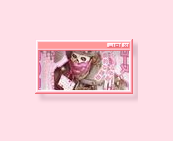 Upload your resized image, and you’ll see it in the editor with some options in the top bar. Click the “Advanced” tab, then “Expand Canvas.” This will add a transparent space around your image, creating room for the stamp’s border. Adjust the width and height of the canvas as needed so the border fits, then click “Apply” to finish.
Still in “Advanced,” click “Overlay Image.” Upload the stamp border you saved earlier, and you’ll see it in the corner of the workspace. Drag it onto the image and use the “Resize Frame” slider to adjust the border's size. When you're done, click “Apply.”
Click “Save” and “Save Image Locally,” and that's it! Your stamp is ready! <33
Upload your resized image, and you’ll see it in the editor with some options in the top bar. Click the “Advanced” tab, then “Expand Canvas.” This will add a transparent space around your image, creating room for the stamp’s border. Adjust the width and height of the canvas as needed so the border fits, then click “Apply” to finish.
Still in “Advanced,” click “Overlay Image.” Upload the stamp border you saved earlier, and you’ll see it in the corner of the workspace. Drag it onto the image and use the “Resize Frame” slider to adjust the border's size. When you're done, click “Apply.”
Click “Save” and “Save Image Locally,” and that's it! Your stamp is ready! <33





